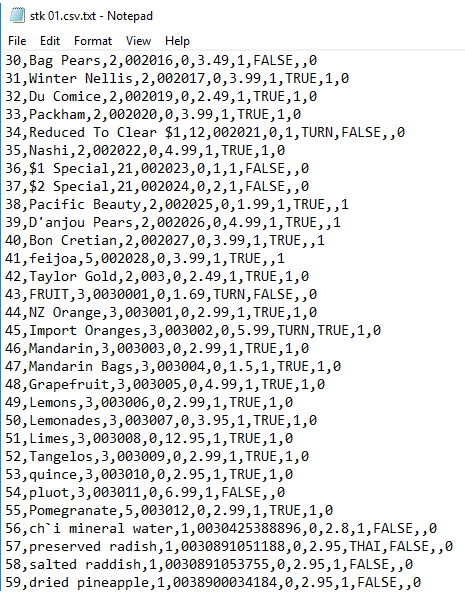
This article may assist in resolving the following issues when preparing data to import into Idealpos:
- Converting a field containing Scientific format to a text field
- Preserving leading zeros in fields such as Code or ScanCode
For Example:
1. Leading Zeros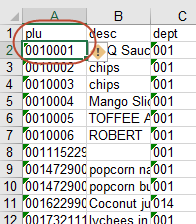
2. Scientific Format (often occurs when saving as *.csv file format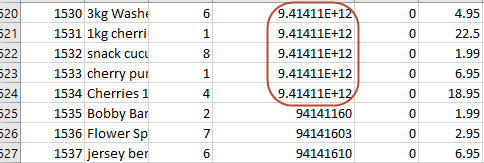
Solution:
1. Export data from the external POS System to an Excel spreadsheet, ready to modify the columns and headings
for example: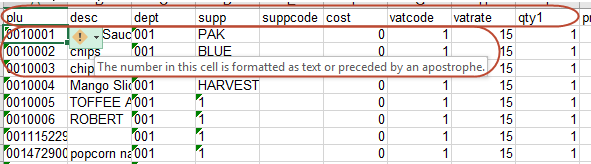
> Edit the file by removing unwanted columns and rename the headings to the correct data import format, for example:
- Please refer to Format of Import Files for detailed information and the naming of column headings.
2. Save As *.csv file type
3. Open the folder location of the saved *.csv file and rename the file exension as follows - ie add *'.txt'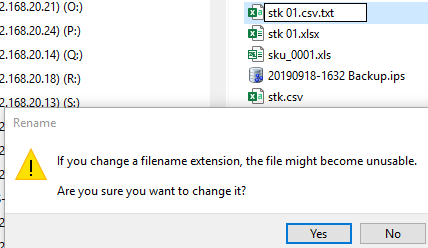
4. Open the saved file from Excel and convert fields:
> From Excel > File > Open - locate the folder and make sure you change the Type to Text Files > click Open
> At the Text Import Wizard, select the following options and then click Next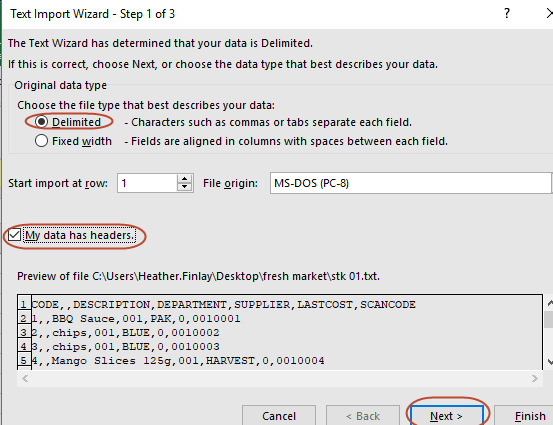
> Select Comma and then Next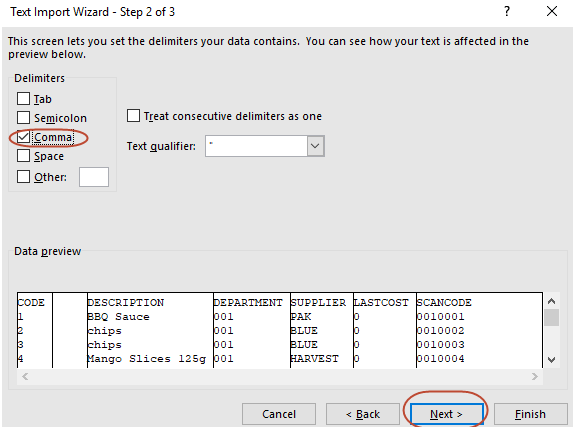
> click on the SCANCODE column and select the Text radio button and then Finish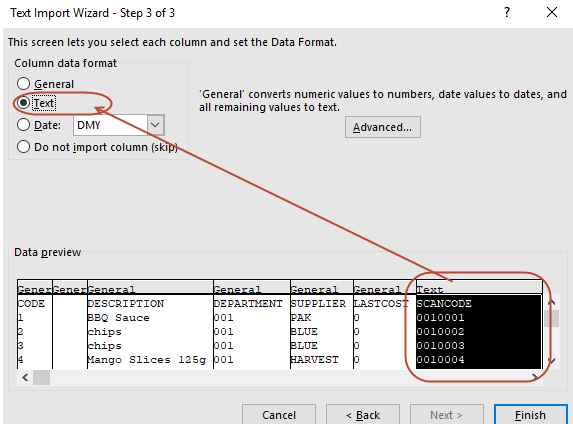
5. Save and Close the file
6. Open the *.csv.txt file and then run a find and Replace All to replace 'tab' with 'comma':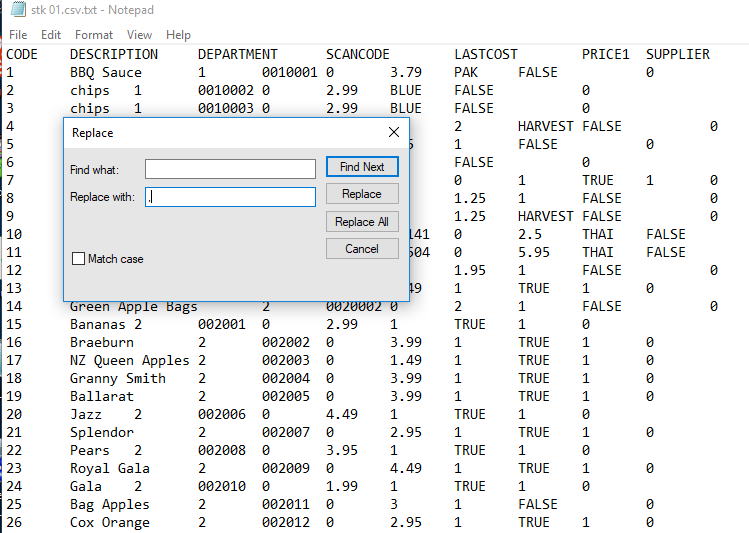
> Save and close the file - ready to import into Idealpos: